AI Chat App
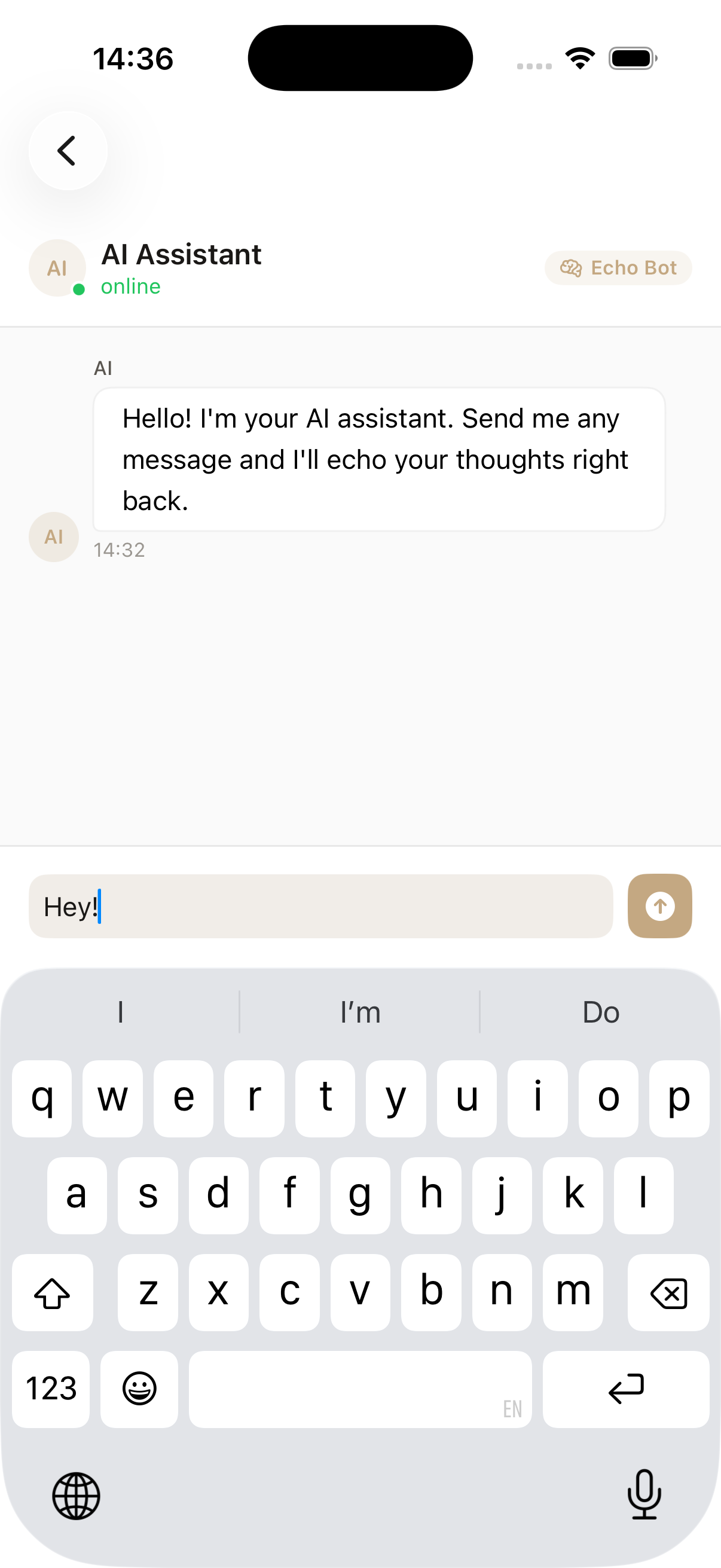
NewA modern chat interface with message bubbles, typing indicators, and smooth animations. Demonstrates real-time messaging UI patterns and chat-specific components.
Overview
An AI chat interface that echoes user messages with realistic typing indicators and smooth message animations. Perfect for understanding chat UI patterns.
- Message bubbles with user/AI distinction
- Typing indicator animation
- Auto-scroll to latest message
- Avatar and online status display
- Smooth message insertion animations
Components Used
Key Features
Message Bubbles
User and AI messages with different alignments and colors. Messages automatically align left for AI and right for user.
Typing Indicators
Animated dots showing when the AI is 'typing' a response, creating a realistic chat experience.
Auto-Scroll
Automatically scrolls to the latest message when new messages arrive, with smooth animations.
Avatars
User and AI avatars with proper spacing and alignment for each message type.
Keyboard Handling
Input bar sticks to the bottom and moves with the keyboard on iOS.
Message Animations
Smooth insertion animations with messages sliding in from the appropriate side.
Code Highlights
Message List Layout
Messages are displayed in a scrollable list with proper alignment for user and AI messages.
ScrollView {
    LazyVStack(spacing: DSSpacing.sm) {
        ForEach(messages) { message in
            HStack {
                if message.isUser { Spacer() }

                DSMessageBubble(
                    text: message.text,
                    isFromUser: message.isUser,
                    timestamp: message.timestamp
                )

                if !message.isUser { Spacer() }
            }
        }
    }
}
.scrollDismissesKeyboard(.interactively)
Typing Indicator
Animated dots that appear when the AI is composing a response.
if isTyping {
    HStack {
        DSAvatar(initials: "AI", size: .sm)

        HStack(spacing: 4) {
            ForEach(0..<3) { i in
                Circle()
                    .fill(Color.dsForegroundMuted)
                    .frame(width: 6, height: 6)
                    .scaleEffect(animatingDot == i ? 1.2 : 1.0)
                    .animation(
                        .easeInOut(duration: 0.6)
                        .repeatForever()
                        .delay(Double(i) * 0.2),
                        value: animatingDot
                    )
            }
        }
        .padding(.horizontal, DSSpacing.sm)
        .padding(.vertical, DSSpacing.xs)
        .background(Color.dsSurface)
        .cornerRadius(DSRadius.medium)

        Spacer()
    }
}
Chat Input Bar
Input bar with send button that sticks to the bottom of the screen.
VStack(spacing: 0) {
    Divider()

    DSChatInputBar(
        placeholder: "Ask me anything...",
        text: $messageText,
        onSend: { text in
            sendMessage(text)
        }
    )
}
.background(Color.dsSurface)
Auto-Scroll to Bottom
Automatically scroll to the latest message when new messages arrive.
ScrollViewReader { proxy in
    ScrollView {
        LazyVStack(spacing: DSSpacing.sm) {
            ForEach(messages) { message in
                MessageRow(message: message)
                    .id(message.id)
            }
        }
    }
    .onChange(of: messages.count) { _ in
        if let lastMessage = messages.last {
            withAnimation {
                proxy.scrollTo(lastMessage.id, anchor: .bottom)
            }
        }
    }
}
Send Message Logic
Handling message sending with typing indicator and simulated AI response.
private func sendMessage(_ text: String) {
    // Add user message
    let userMessage = Message(text: text, isUser: true)
    messages.append(userMessage)

    // Show typing indicator
    isTyping = true

    // Simulate AI response
    DispatchQueue.main.asyncAfter(deadline: .now() + 1.5) {
        isTyping = false

        let aiResponse = Message(
            text: generateAIResponse(to: text),
            isUser: false
        )
        messages.append(aiResponse)
    }
}
What You'll Learn
Chat Interface Patterns
Building a modern chat UI with proper message alignment and spacing.
Message Bubbles
Creating message bubbles that adapt to user/AI with different colors and alignment.
Typing Indicators
Implementing animated typing indicators with dot animations.
Real-time Updates
Handling real-time message updates and auto-scrolling to new messages.
Keyboard Handling
Managing keyboard appearance and dismissal with proper input bar positioning.
Scroll to Bottom
Automatically scrolling to the latest message when new messages arrive.
View Source Code
Explore the complete implementation in the DesignSystem repository.
View on GitHub